
VS Code Extension
The t-req VS Code extension lets you run and manage HTTP requests directly from .http files in the editor — no terminal required.
Install
Section titled “Install”Search “t-req” in the Extensions panel (Ctrl+Shift+X / Cmd+Shift+X) and click Install.
To install from a .vsix file:
code --install-extension t-req-*.vsixNo external CLI install is needed — the t-req core engine is bundled in the extension.
Running requests
Section titled “Running requests”Every request block in a .http file gets a Run Request CodeLens link above it. Click it (or press the keyboard shortcut) to execute the request. Results appear in a dedicated response panel showing status, headers, and body with syntax highlighting.
Use Run All Requests to execute every request in the file sequentially.
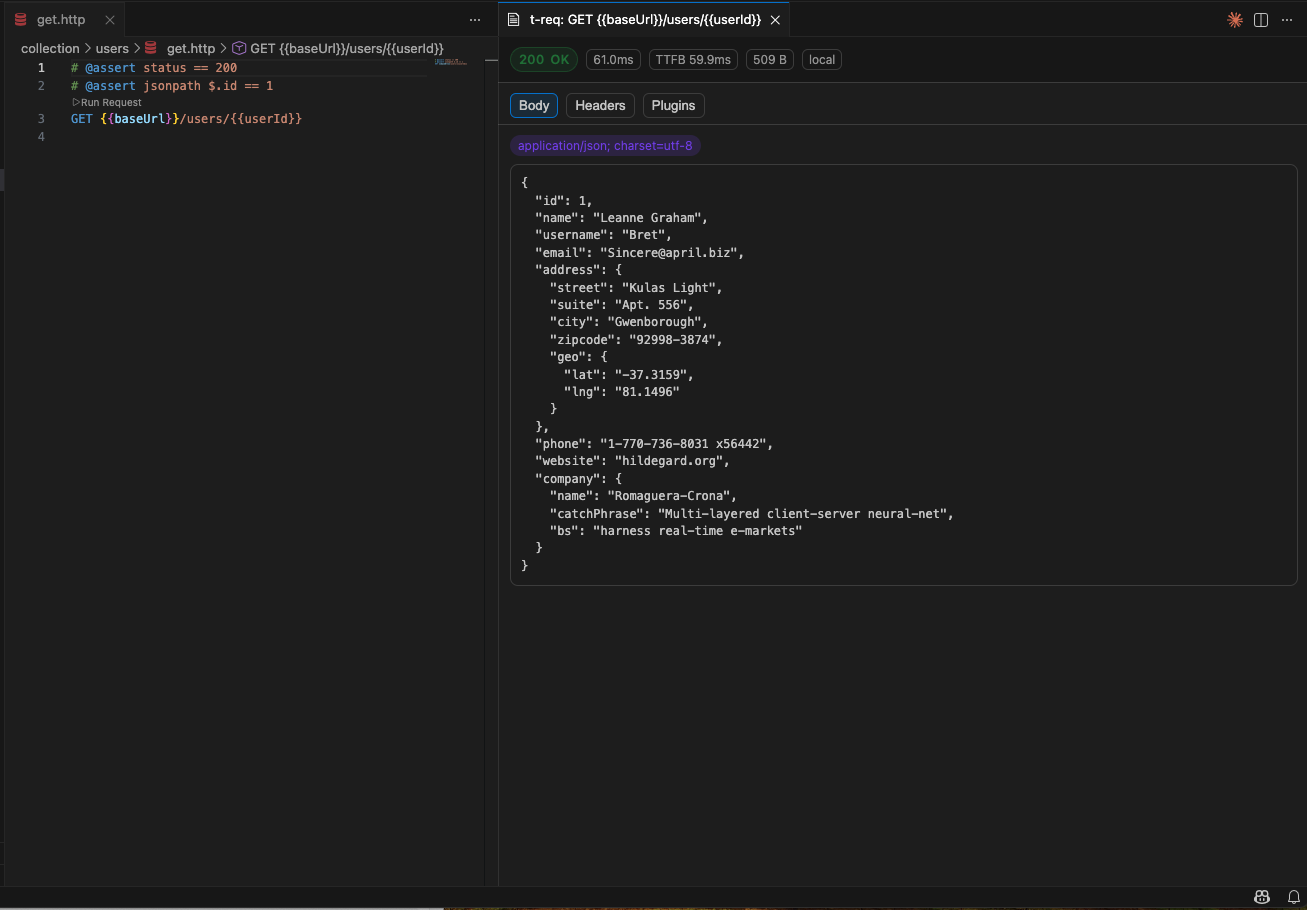
Inline assertions
Section titled “Inline assertions”The extension’s standout feature is inline @assert directives with pass/fail results shown directly in a Plugins tab in the response panel.
# @assert status == 200# @assert jsonpath $.users[0].name == "Alice"GET {{baseUrl}}/usersAccept: application/jsonAfter execution, the Plugins tab shows each assertion with a clear pass/fail indicator — no separate test runner, no context switching.
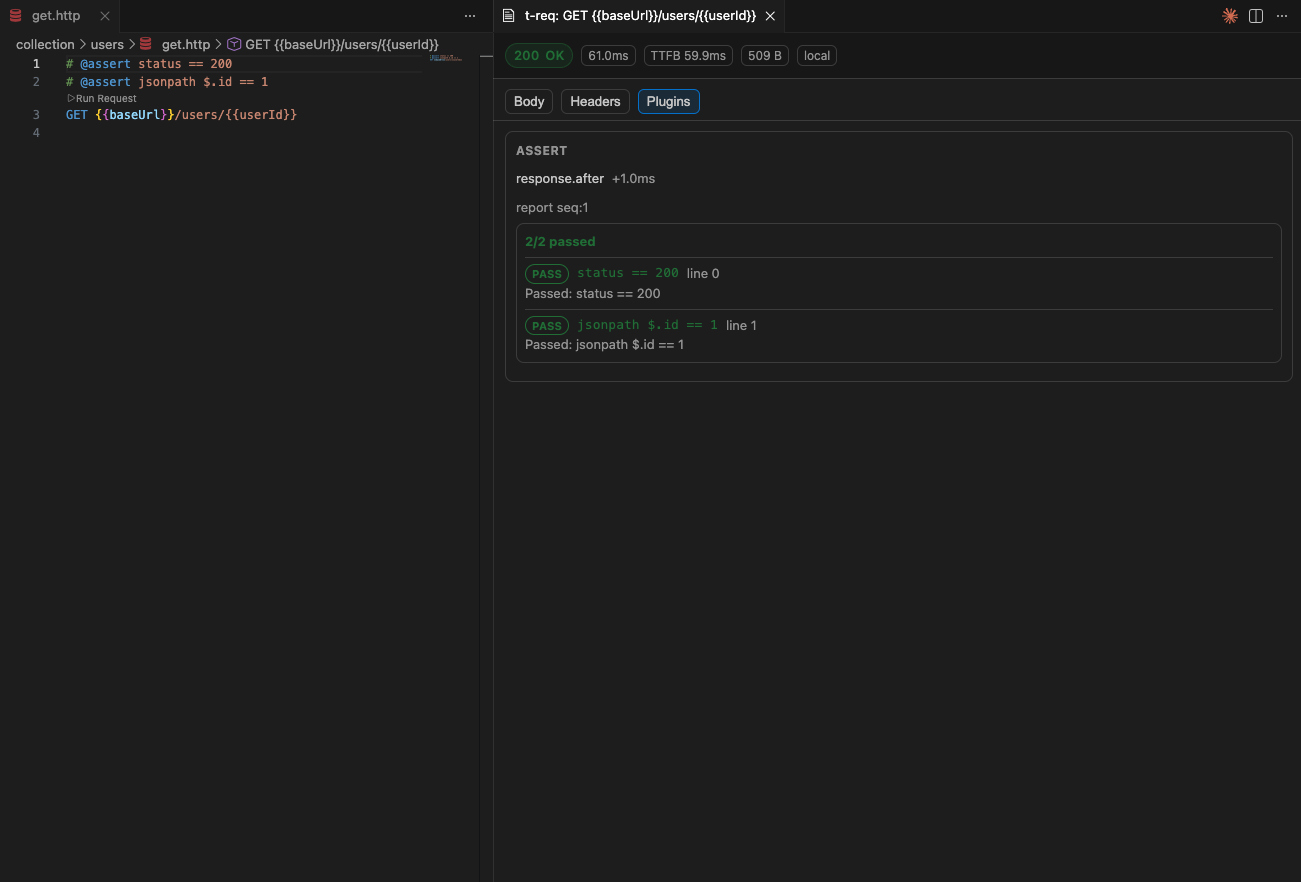
This requires the @t-req/plugin-assert plugin in your treq.jsonc. See the Plugins guide for full @assert syntax and setup.
Profiles
Section titled “Profiles”Switch between environments (dev, staging, prod) using the Select Profile command. The active profile determines which variables are injected into your requests.
Set a default profile in settings with t-req.defaultProfile, or switch on the fly from the Command Palette.
Execution modes
Section titled “Execution modes”The extension supports two execution modes:
| Mode | Description |
|---|---|
| Local (default) | Uses the bundled t-req engine. Zero setup — just open a .http file and run. |
| Server | Proxies requests to a remote treq serve instance. Useful for shared environments or when the target API is only reachable from a specific network. |
Switch modes in settings with t-req.executionMode. Server mode requires t-req.serverUrl to be set.
Commands
Section titled “Commands”All commands are available via the Command Palette (Ctrl+Shift+P / Cmd+Shift+P):
| Command | Description |
|---|---|
t-req: Run Request | Execute the request under the cursor |
t-req: Run All Requests | Execute all requests in the current file |
t-req: Select Profile | Choose the active profile |
t-req: Cancel Request | Cancel a running request |
t-req: Set Server Token | Store a bearer token for server mode |
t-req: Clear Server Token | Remove the stored server token |
Configuration
Section titled “Configuration”Configure via Settings > Extensions > t-req or in settings.json:
| Setting | Type | Default | Description |
|---|---|---|---|
t-req.executionMode | "local" | "server" | "local" | Execution mode — local uses the bundled engine, server proxies to a remote t-req server |
t-req.serverUrl | string | "" | Base URL for the t-req server (server mode only) |
t-req.defaultProfile | string | "" | Default profile for request execution |
t-req.timeout | number | 30000 | Request timeout in milliseconds |
t-req.enableDiagnostics | boolean | true | Enable inline diagnostics for .http files |
t-req.maxBodyBytes | number | 1048576 | Maximum response body size to render |
Token management
Section titled “Token management”When using server mode, authenticate with a bearer token:
- Run
t-req: Set Server Tokenfrom the Command Palette - Enter your token — it is stored securely in VS Code’s SecretStorage (never in settings files)
- To remove it, run
t-req: Clear Server Token